macOS Permissions Guide
OpenAdapt requires several system permissions on macOS to capture user interactions and replay actions. This guide covers the required permissions and how to enable them.
Compatibility: macOS 13 Ventura, macOS 14 Sonoma, and macOS 15 Sequoia. Earlier versions may have different menu layouts.
Overview
OpenAdapt needs three types of permissions:
| Permission | Purpose | Required For |
|---|---|---|
| Input Monitoring | Capture keyboard and mouse input | Recording user actions |
| Screen Recording | Capture screenshots | Recording screen state |
| Accessibility | Control mouse and keyboard | Replaying actions |
Important: While macOS will prompt you for Input Monitoring and Screen Recording permissions on first run, it will not prompt for Accessibility permissions. If Accessibility permission is not granted, action replay will fail silently.
Which Application Needs Permissions?
Grant permissions to the application you use to run OpenAdapt:
- Terminal.app - If you run OpenAdapt from the built-in macOS Terminal
- iTerm - If you use iTerm2 as your terminal
- Visual Studio Code - If you run from the VS Code integrated terminal
- PyCharm or other IDE - If you run from an IDE's terminal
- Python - In some cases, the Python executable itself may need permissions
Tip: If permissions don't seem to work, try granting them to both your terminal application and the Python executable.
Enabling Input Monitoring
Input monitoring allows OpenAdapt to capture keyboard and mouse events during recording.
- Open System Settings (or System Preferences on older macOS)
- Navigate to Privacy & Security in the sidebar
- Click Input Monitoring in the right panel
- Click the + button to add your terminal application
- Toggle the switch to enable access

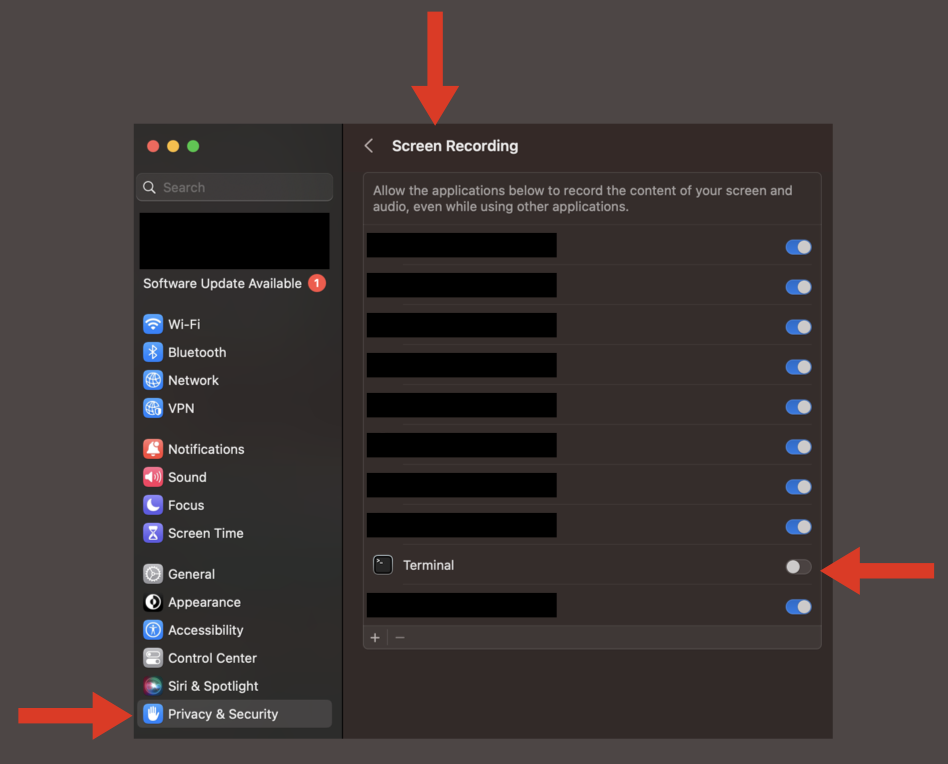
Enabling Screen Recording
Screen recording allows OpenAdapt to capture screenshots during recording.
- Open System Settings
- Navigate to Privacy & Security in the sidebar
- Click Screen Recording in the right panel
- Click the + button to add your terminal application
- Toggle the switch to enable access
- You may need to restart your terminal for changes to take effect
Enabling Accessibility (for Action Replay)
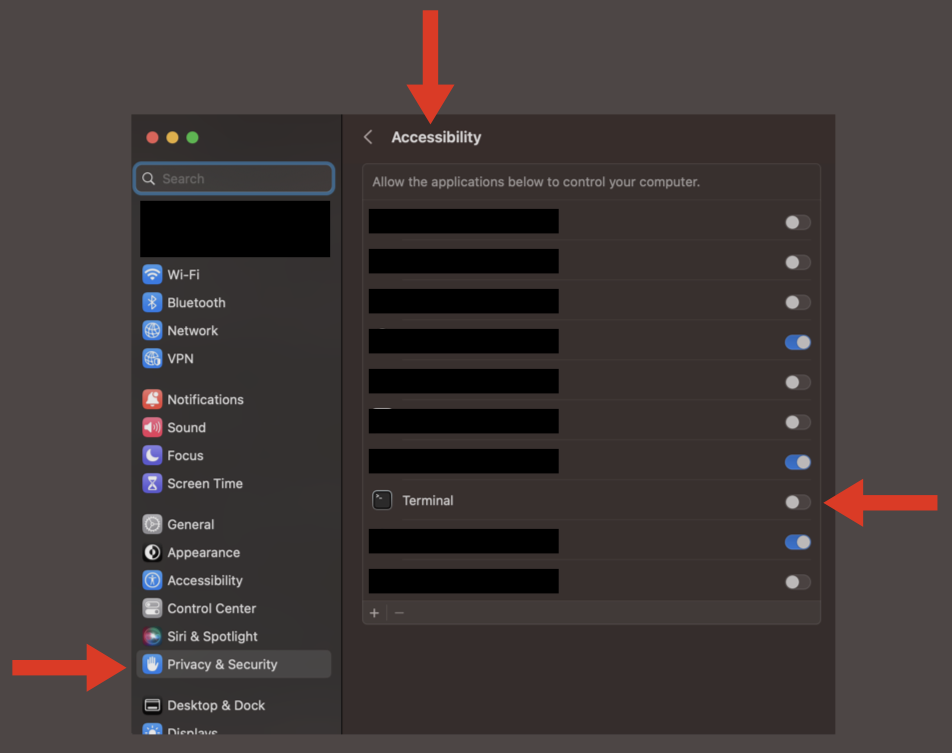
Accessibility permissions allow OpenAdapt to control the mouse and keyboard during replay.
Note: This permission is required for replaying recorded actions. Without it, replay will fail silently.
- Open System Settings
- Navigate to Privacy & Security in the sidebar
- Click Accessibility in the right panel
- Click the + button to add your terminal application
- Toggle the switch to enable access
Quick Access via Terminal
You can quickly open the Privacy & Security settings from the command line:
# Open Privacy & Security settings
open "x-apple.systempreferences:com.apple.preference.security?Privacy"

# Open Input Monitoring directly
open "x-apple.systempreferences:com.apple.preference.security?Privacy_ListenEvent"

# Open Screen Recording directly
open "x-apple.systempreferences:com.apple.preference.security?Privacy_ScreenCapture"

# Open Accessibility directly
open "x-apple.systempreferences:com.apple.preference.security?Privacy_Accessibility"
Troubleshooting
Permission prompts not appearing
If you don't see a permission prompt when running OpenAdapt:
- Check if the permission is already granted in System Settings
- Try removing and re-adding the application in the permissions list
- Restart your terminal application
- Restart your Mac if issues persist
Replay actions not working
If recording works but replay does not:
- Verify Accessibility permission is granted
- Check that the correct application has the permission
- Try granting permission to both your terminal and the Python executable
Screen recording shows black screenshots
- Ensure Screen Recording permission is granted
- Restart your terminal application after granting permission
- Some applications may require a system restart
Finding the Python executable
If you need to grant permissions to Python directly:
# Find which Python is being used
which python

# Or for Python 3 specifically
which python3

# If using a virtual environment, it will show the venv path
# Grant permissions to that specific Python executable
Usage with New Modular Architecture
When using the new OpenAdapt modular packages (v1.0.0+):
# Recording (requires Input Monitoring + Screen Recording)
openadapt capture start --name "my-task"

# Replaying (requires Accessibility)
openadapt replay --strategy visual
The CLI commands are run from your terminal, so ensure your terminal application has the necessary permissions.
Related Documentation
- Legacy Codebase Freeze - Information about the transition to the new modular architecture
- OpenAdapt Documentation - Main project documentation